The GAP Partnership · Integrating AI
Bringing an AI copilot into a negotiation toolkit
- Discovery
- Design
- User testing
- AI
The challenge
Integrating AI into the new tool suite
- TeamMe (design lead), Head of Innovation, an AI specialist, an LLM data consultant and the dev team
What would trigger it? Is it a chatbot, or just a ‘Clippy’-style help popup? What will the interface look like? How much will it help? How will the experience differ between mobile and desktop?
Discovery
The starting point
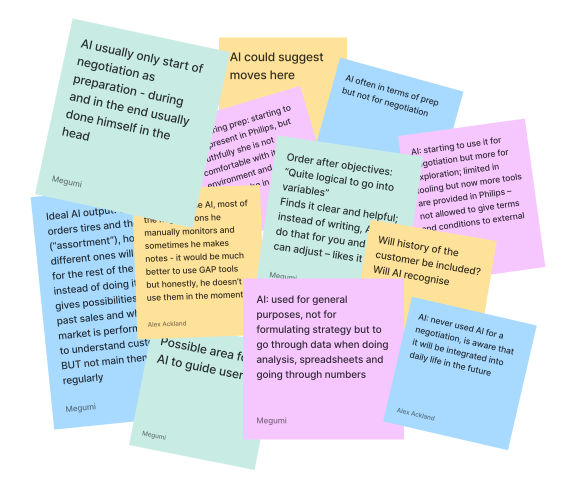
In user testing, as part of the background questions, we asked whether people use AI to negotiate and, if not, whether they’d be interested.
Most already used it to turn data (.csv or Excel) into information such as a graph or table. Very few used it to plan a negotiation or write a script.
- 72%already use AI, mainly to turn data into graphs or tables
- 4%use AI to help them negotiate
- 95%of non-users would be interested
When testing screens, users also said things like:
It’d be handy to have AI help me out here.
If I can upload all my moves data here and it populates into the table, it would save a lot of time.
So we knew users would like to upload text and images, and to have a conversation to find out, for example, the best way to behave.
Process mapping
User AI interaction
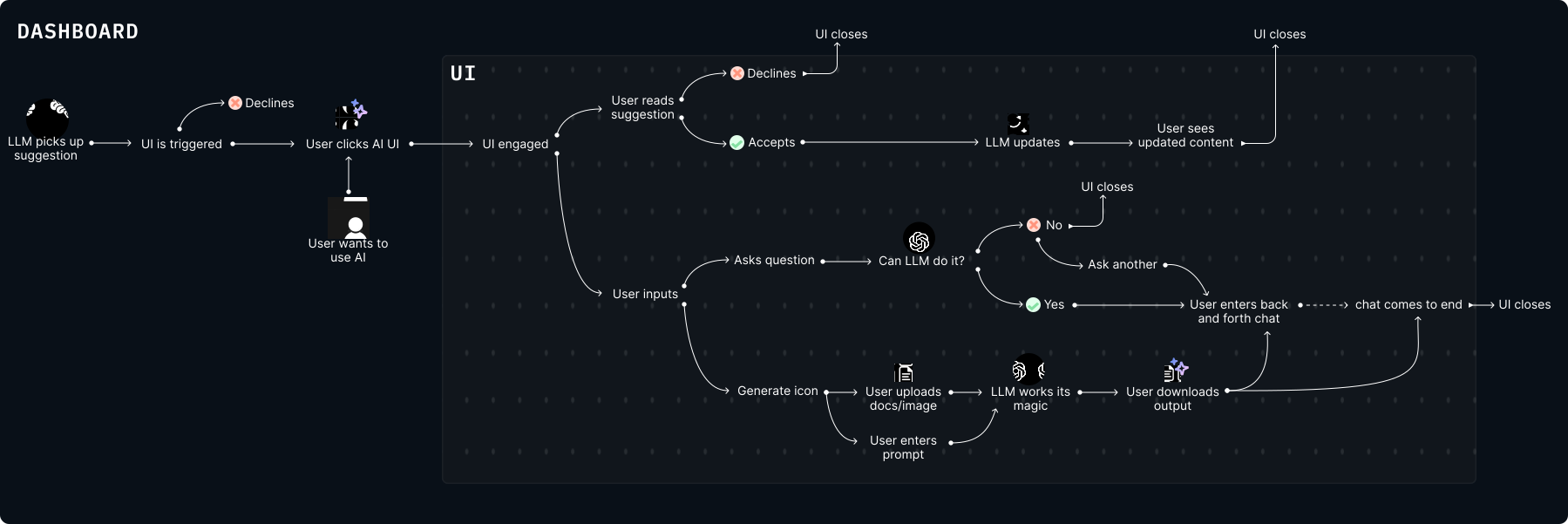
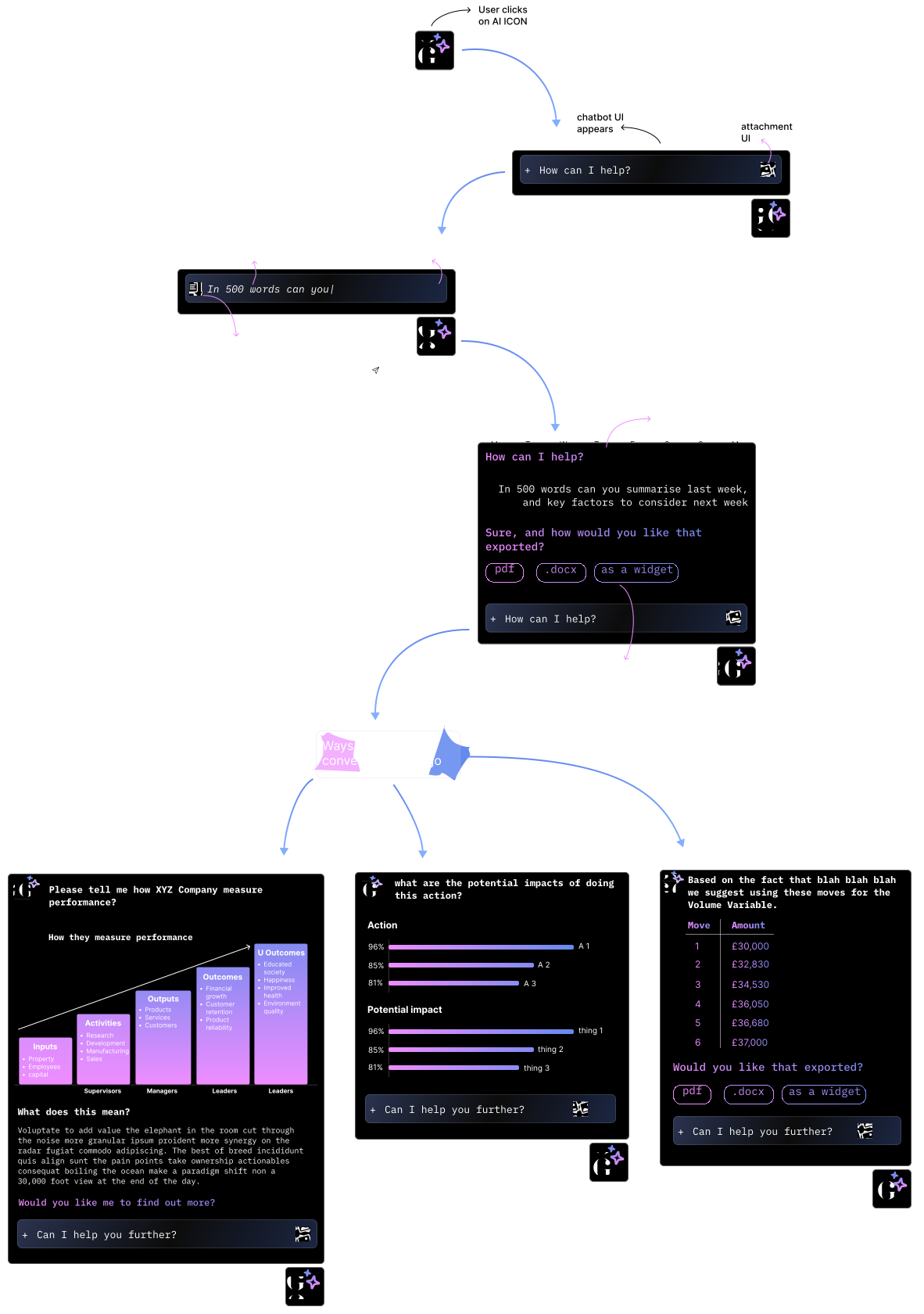
I wanted to understand what the interfaces do, what triggers them and what they output. I sat down with the AI specialist, the LLM data consultant and the dev team to draw up a process map of how the user would interact with the AI.
My main goal was to find out which UI elements needed designing and testing.
I needed to come up with
- 01A pattern that tells the user the AI has picked up a change or improvement
- 02A UI that shows the user the recommended change
- 03A UI for the user to converse with the LLM
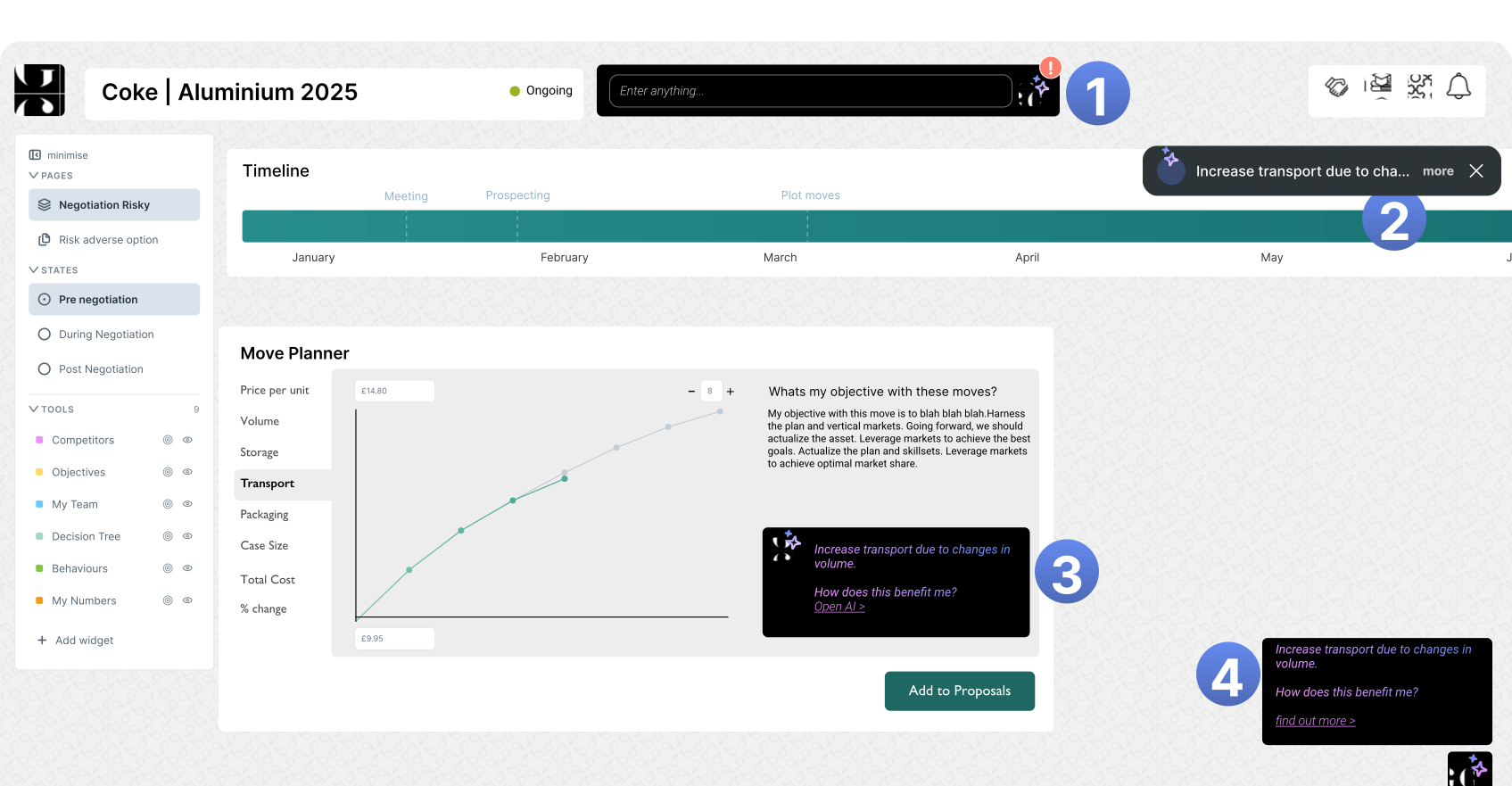
First I looked at where the notification should sit, the types of pattern each position suggests, and how much text to show.
User testing
Top bar vs chatbot
Users liked it sitting at the top, but it felt more like a search bar than a trigger for an AI interface. They also disliked a small notification being used to show an AI suggestion.
Users linked it with a completed action, and asked where the notification would go once the toast disappeared, essentially adding an extra step.
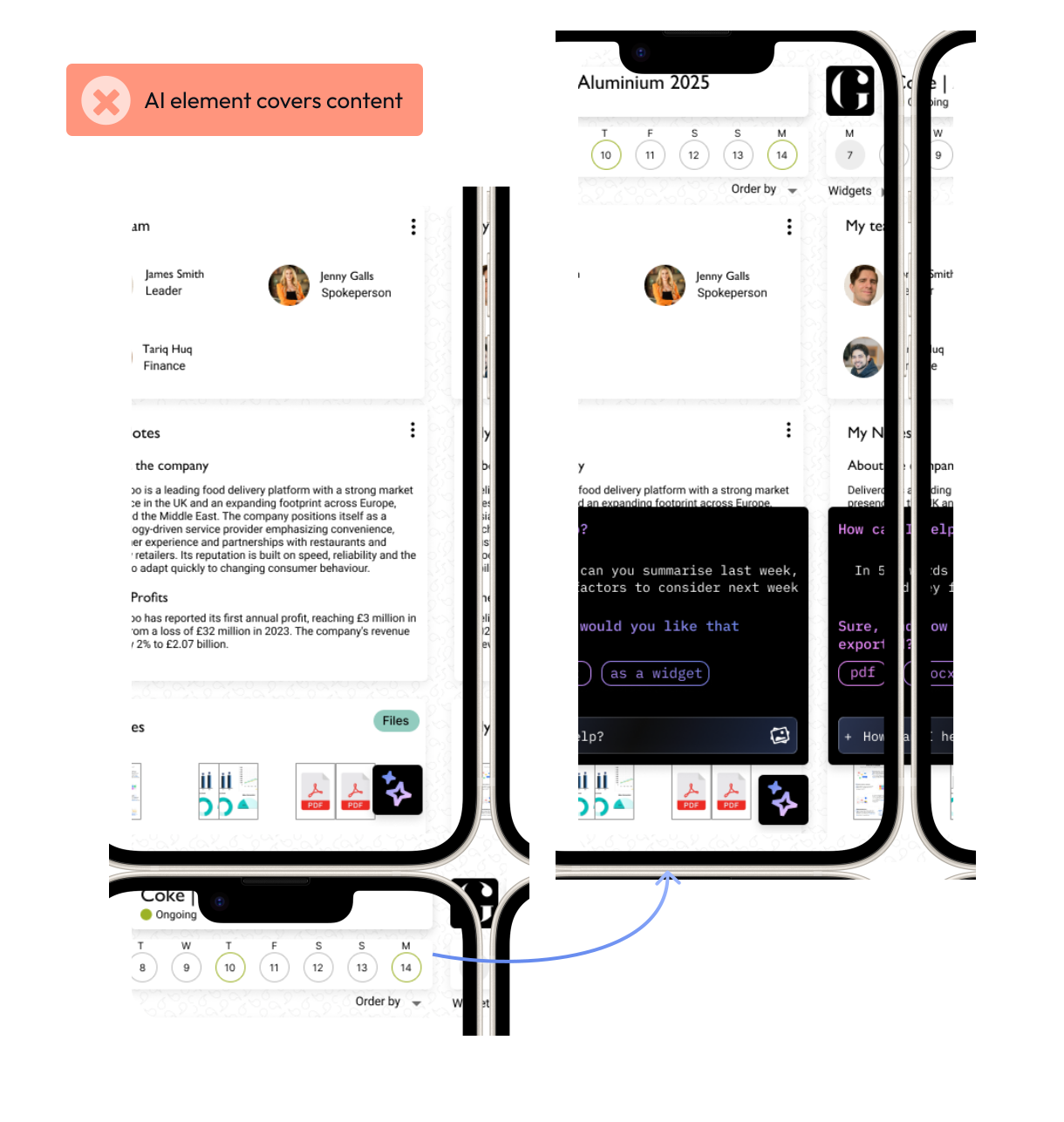
Users asked whether it would cover content. I quickly realised it would be hard to find space for every individual scenario.
Positively received, though it raised some questions about covering content.
Stress testing
Taking the favourites further
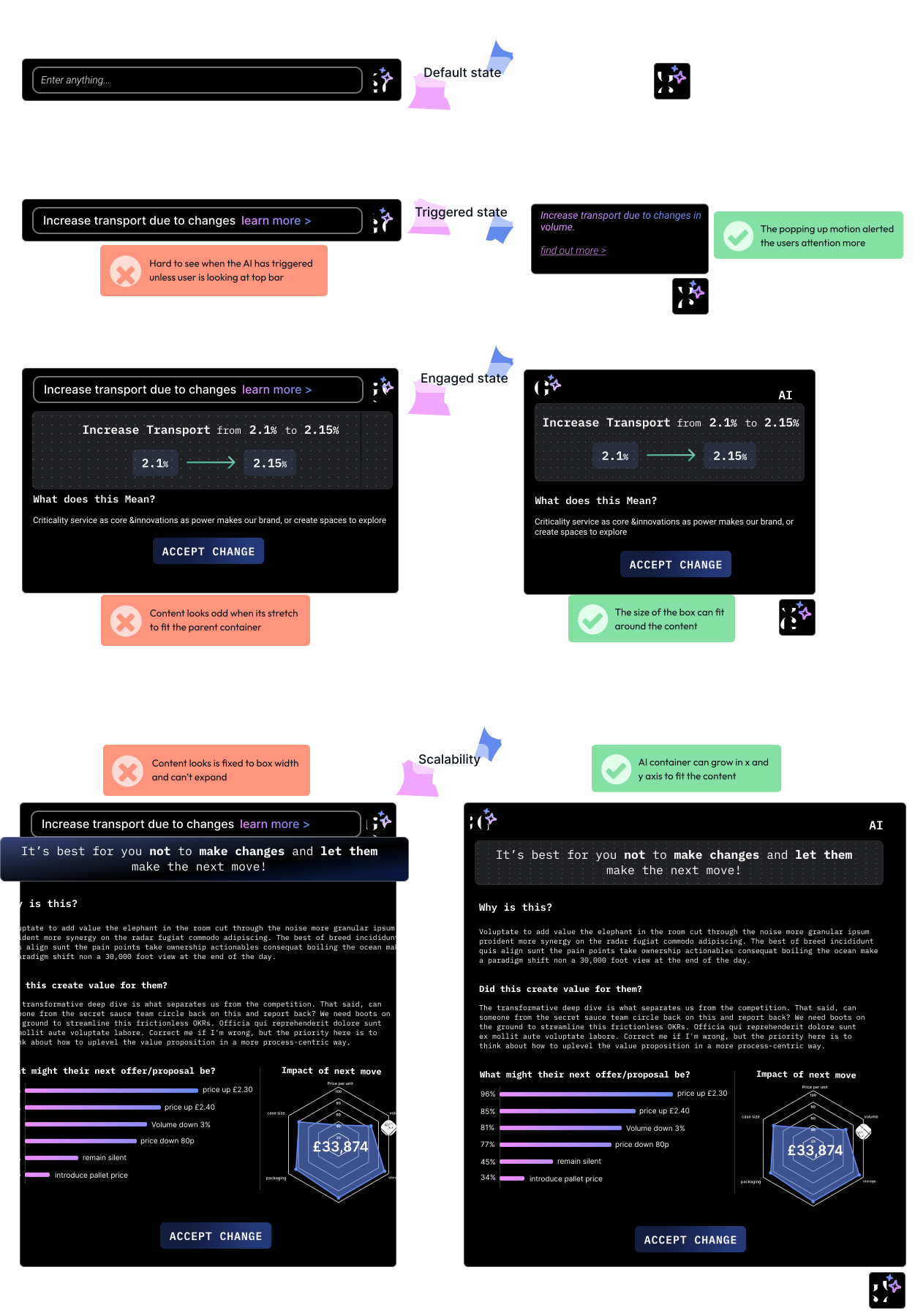
The top bar and the chatbot were clear favourites, so I took them further and stress-tested them in different states and scenarios.
Mobile
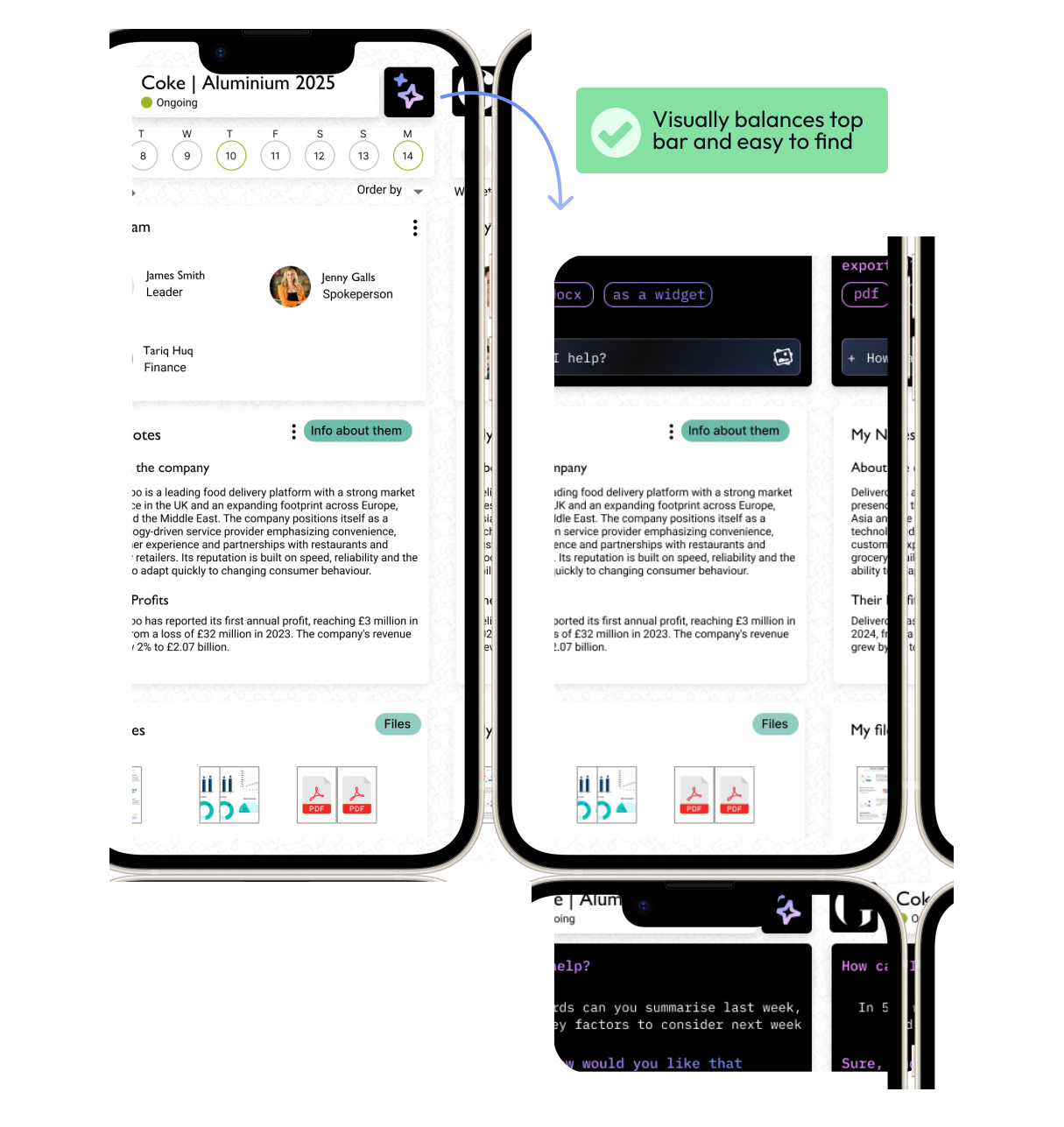
On mobile, an AI button in the bottom-right corner would float over content, and space is very limited, so we looked elsewhere.
The best place was top right, with a shortened title component. As well as fitting well, it balanced out the top bar. Tapping the AI option simply drops the component down.
AI top right
AI bottom right
Outcome
Engineered and ready to ship
Other challenges faced