Integrating AI

Challenge
Understanding how to integrate AI into the newly designed tool suite.
Team
Me (Designer lead), Head of Innovation, AI specialist, LLM data consultant and the dev team.
Asking key questions
What would trigger it? Is it a chatbot or just a ‘clippy’ help/suggestion popup? What will the interface look like? How much will it help? How will the experience differ from mobile to desktop?
The starting point
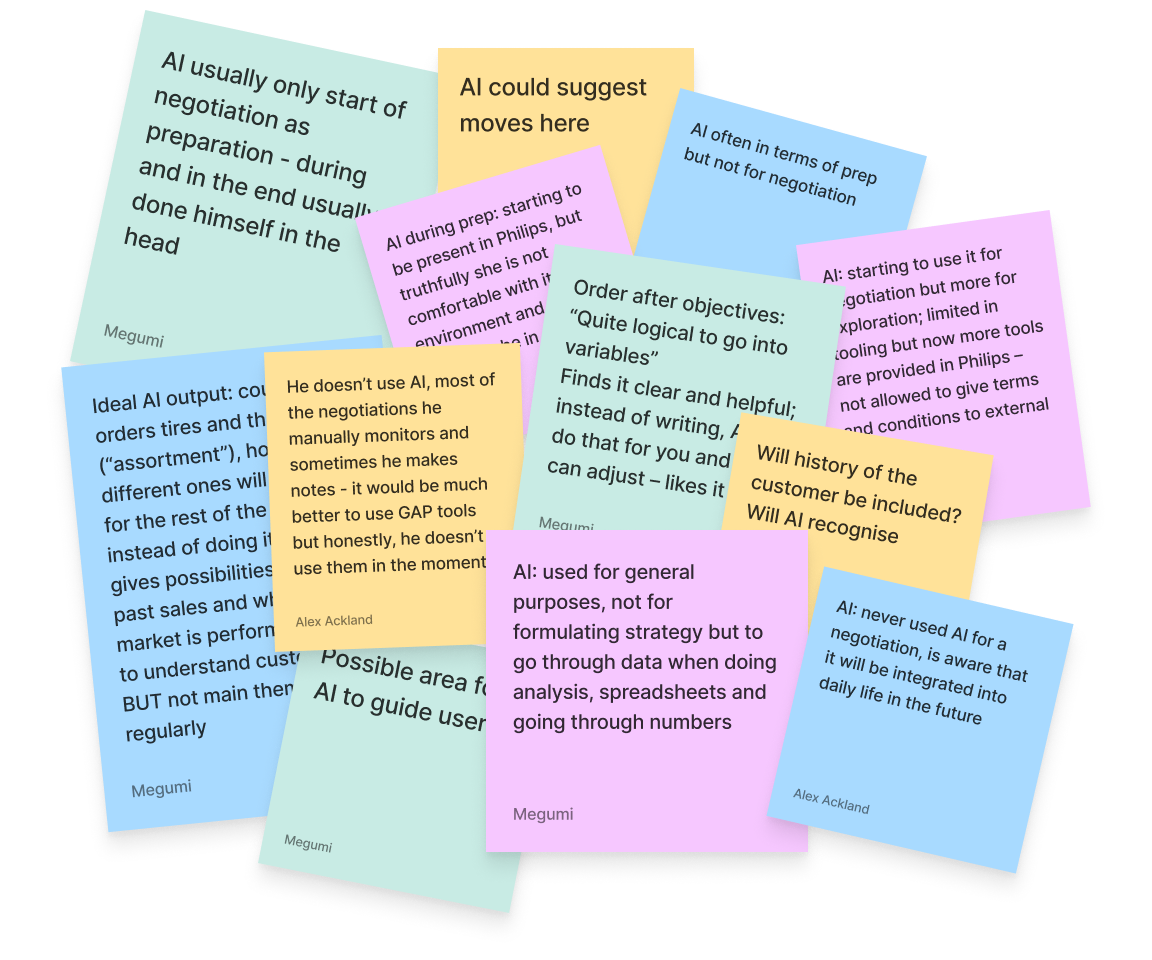
During various user testing sessions, as part of the initial ‘background Q’s’ we asked the user if they use AI to negotiate and if no would they be interested.
72% of users said they already use it to mainly input data (.csv/excel) and turn it into information such as a graph or table. Only 4% of users use AI to help them negotiate and write out a plan or script.
Of the remaining 28% who didn’t use it, 95% would be interested to use it for one way or another.
When testing certain screens or theories users also mentioned “it be handy to have ai help me out here” or “if I can upload all my moves data here and it populates into the table, it would save a lot of time“. Having this information to hand, we knew that 1. users would like to upload text/images and 2. like to engage in a conversation to find out the best way to do behave for example.
User AI interaction
I wanted to understand what the interface(s) do, what triggered them and the output. So I sat down with the AI specialist, LLM data consultant and the dev team to draw up a process map on how the user would interact with the ai.
My main goal was to understand what UI elements there were to design and test.
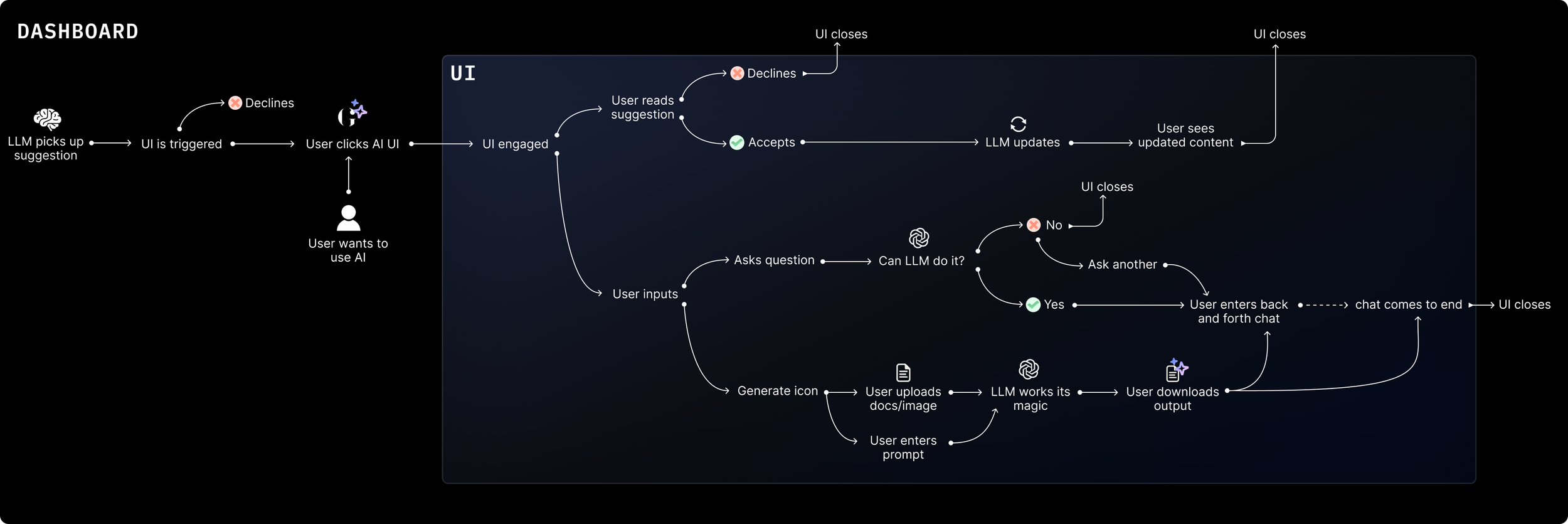
Based on my conversation with the team, I needed to come up with:
A pattern that notifies the user AI has picked up a change or improvement
A UI to show the user the recommend change
A UI for the user to converse with the LLM
Firstly I looked at the positioning of the notification, types of pattern associated with its positioning and and the amount of text shown.
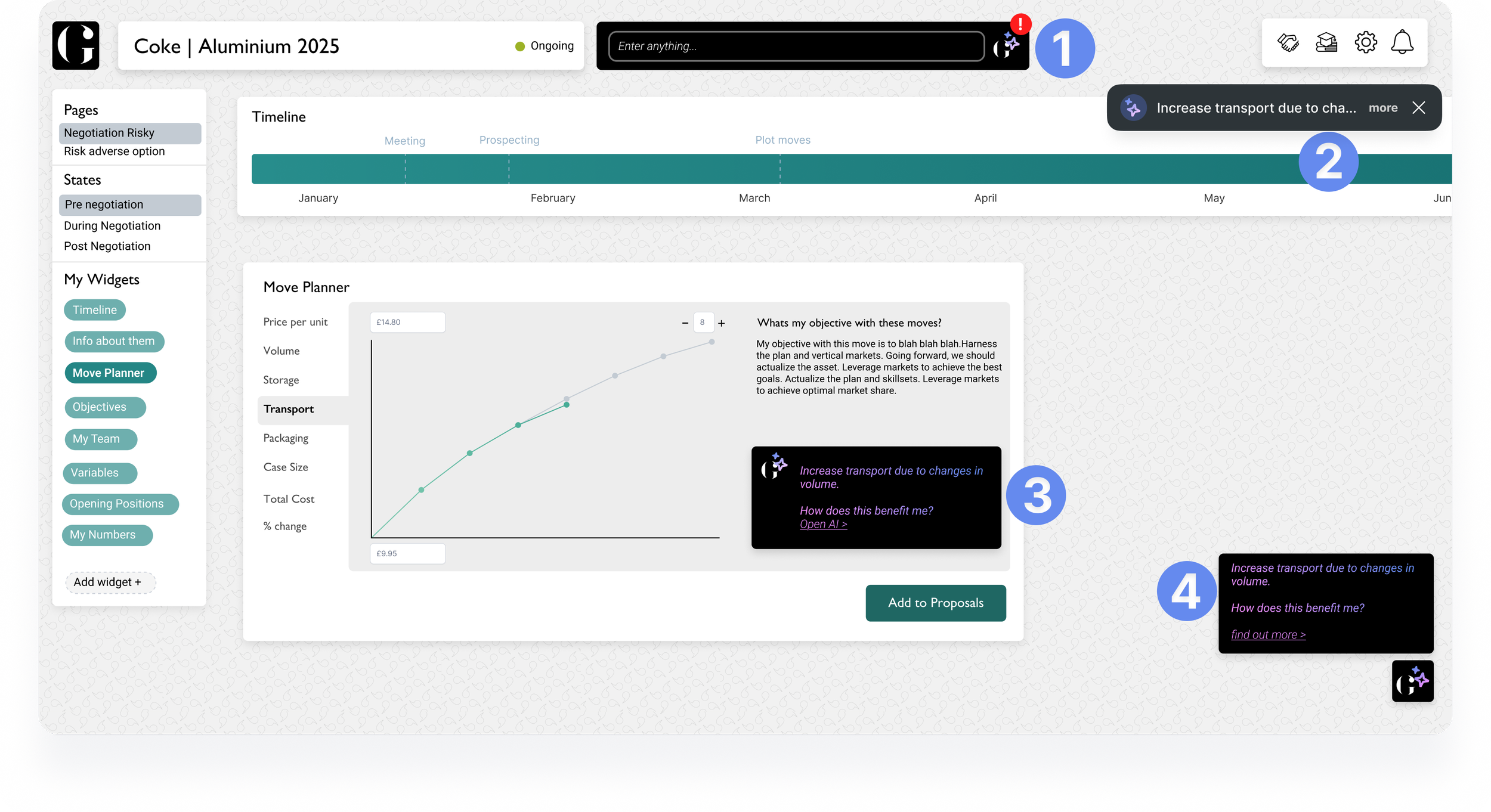
Top bar vs chatbot
Top Bar
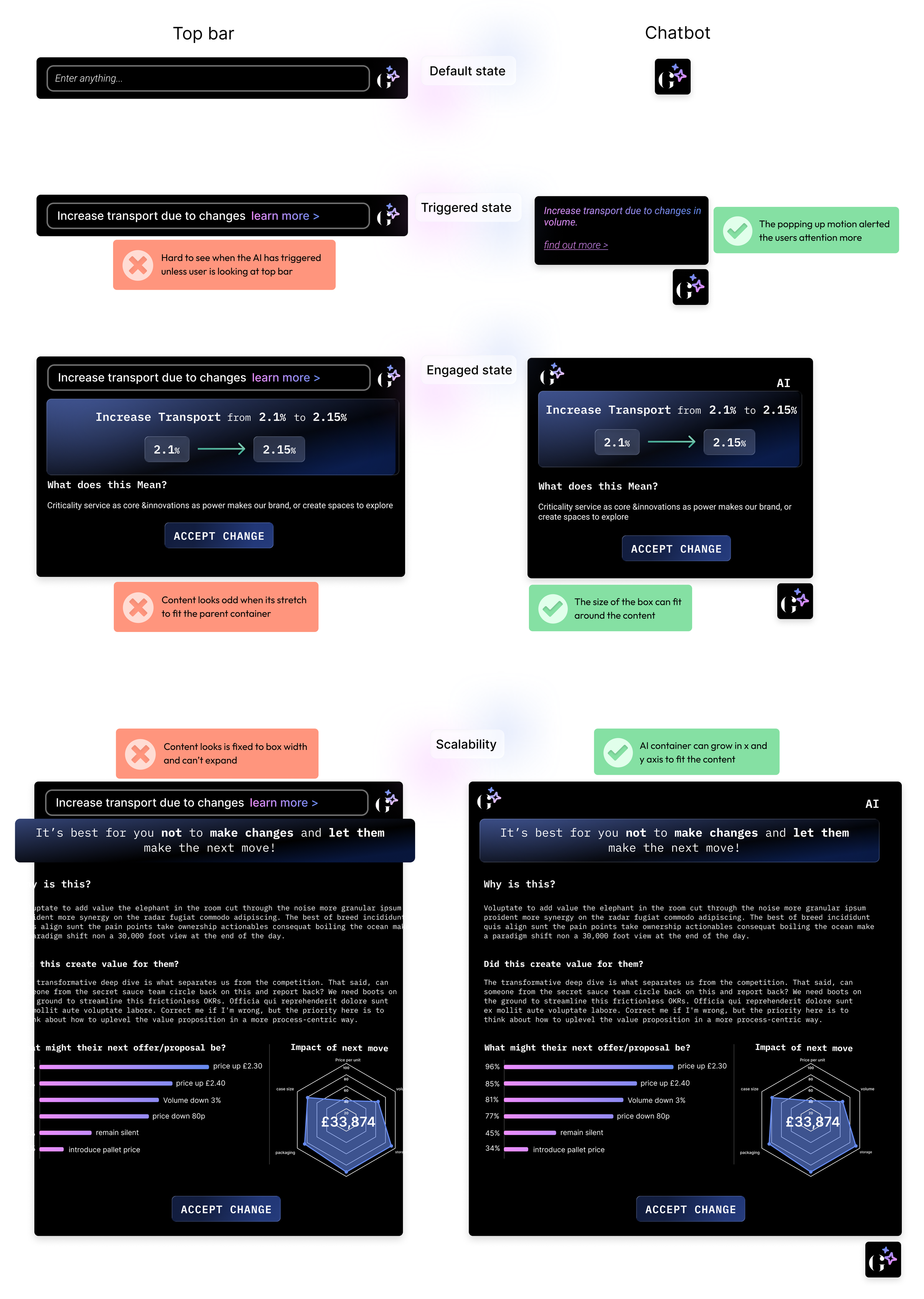
Users liked the fact it was up top however it reminded them more of a search bar than a trigger for a AI interface. Users also didn’t like the fact a small notification was used to show an improvement was suggested by the AI.Toast
Users related this with a completed action and questioned where the notification would be once the toast disappeared essentially adding an extra step.Inline
Users questioned whether this would cover content. I quickly realised it would be hard to find space for each individual scenario.Chatbot style
This was positively received however did raise some questions about covering content.
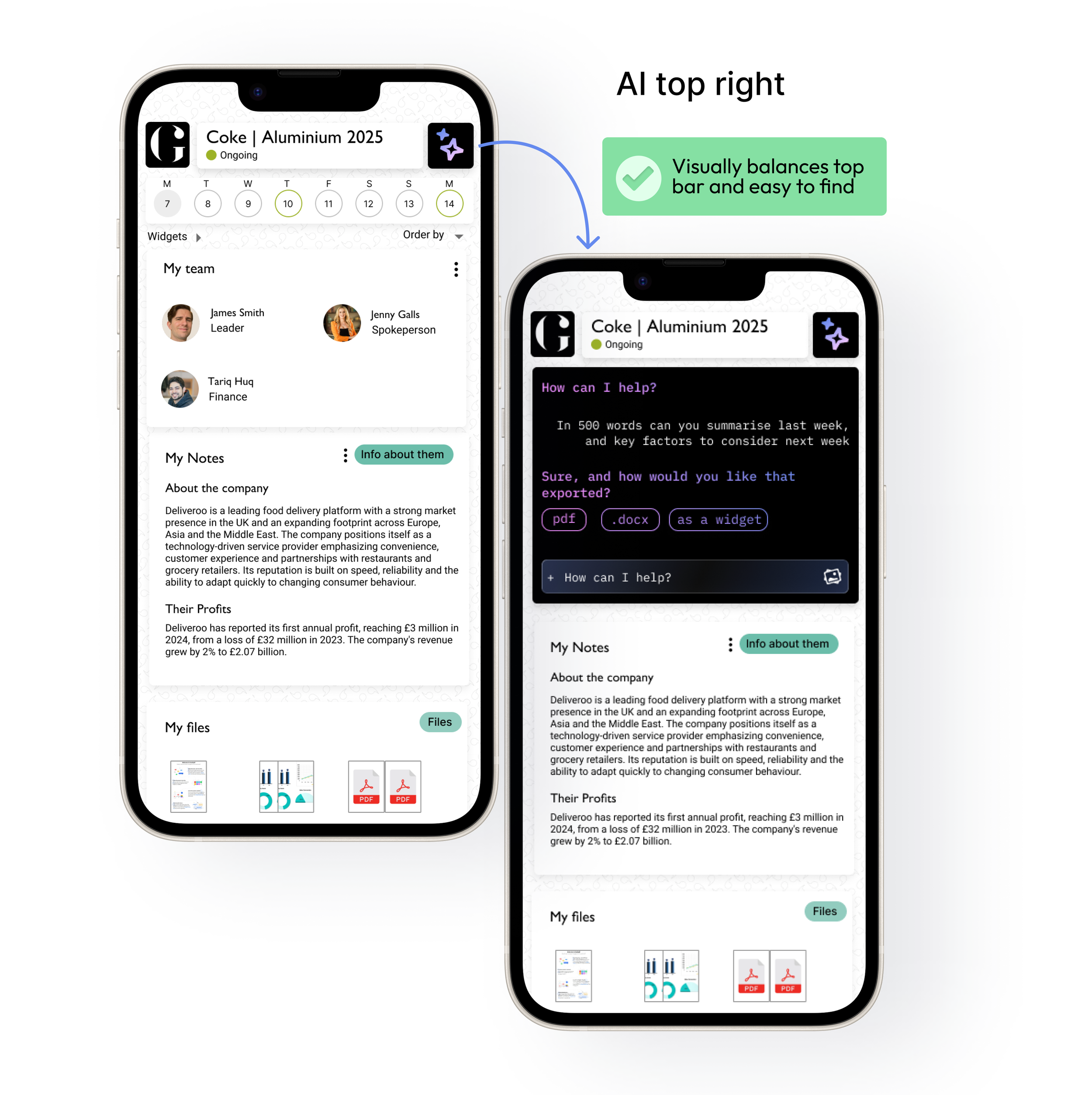
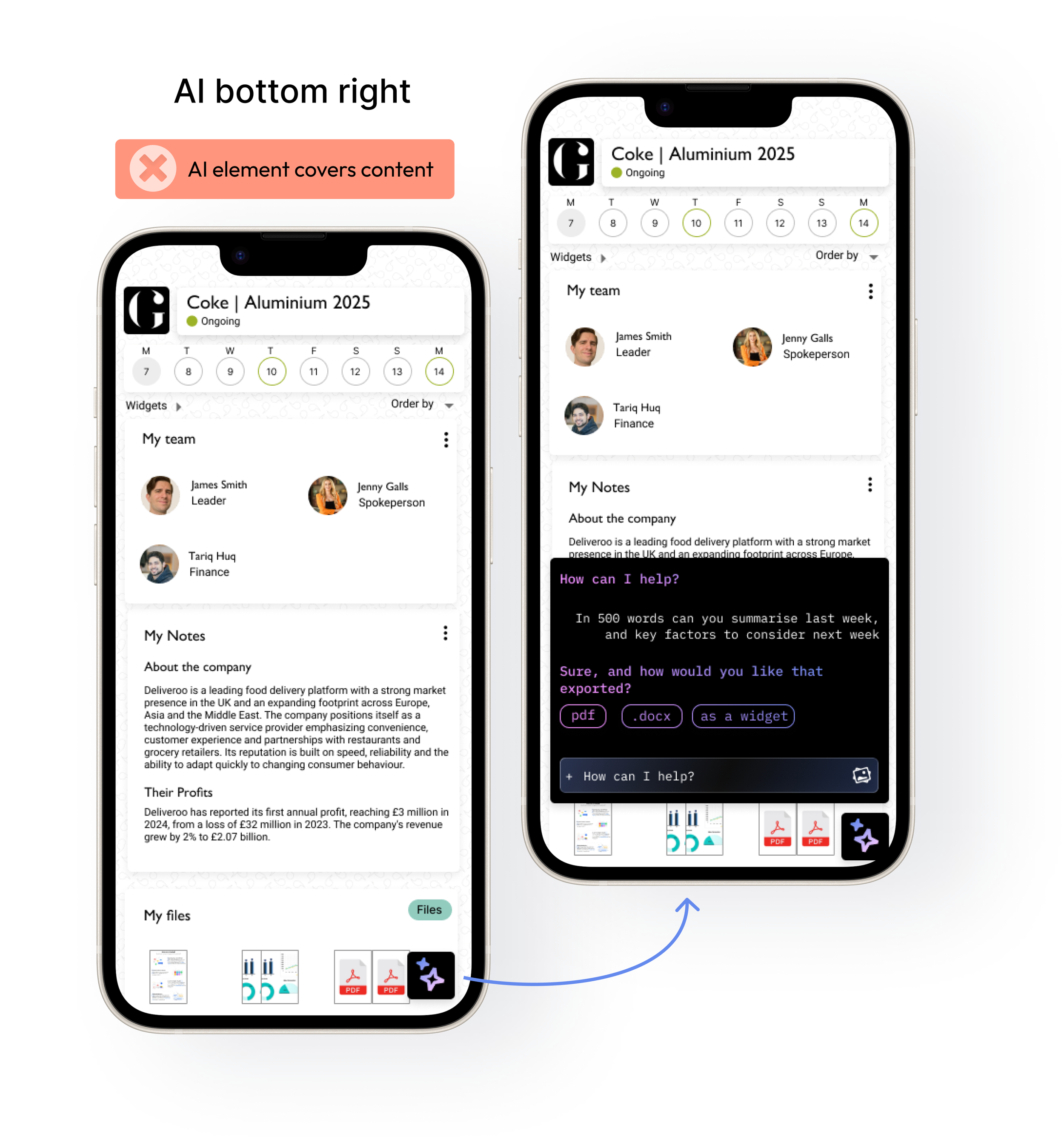
The issue with mobile is that if we place the AI UI bottom right hand corner it would be floating and covering content. With the very limited space on the mobile we looked at other places to put it.
The best place was to place it top right and shorten the title component. As well as fitting well it actually balanced out the top bar! When the user clicks the AI option the component would simply drop down.
Outcome
AI UI was engineered and ready to ship for Q2 2026
Beta testing due to commence in June 2026, once the back end LLM is ready
As the top bar and the chat bot were clear favourites, I decided to take them further and stress test them out in different states and with different scenarios.
User Engagement
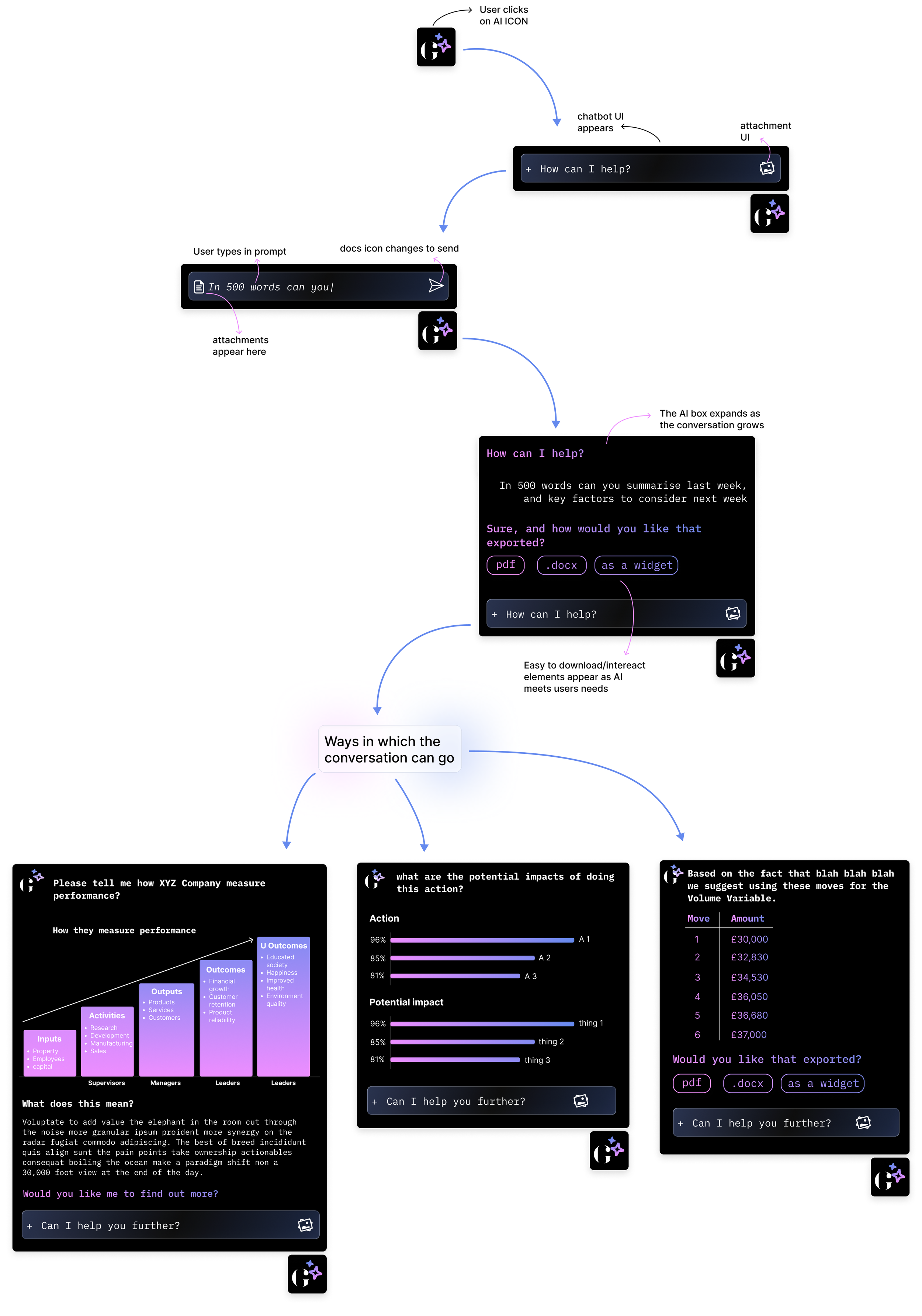
Once it was clear we were going with the chatbot design, the challenge was understanding the specific interface and how a user may use the chatbot and what the inputs would be. As the user engages with the chatbot the input bar dynamically changes whether they are asking a Q, replying to a bot or uploading a document.
Mobile vs Desktop
Introduction to Negotiation
Other challenges faced
DISCOVERY & RESEARCH